How to switch baby tracker apps without losing your data
Published 9 October 2026 · Đào Văn Thương · 6 min read
To switch baby tracker apps without losing your history, export your data from the old app as a CSV file while you still can, save it to the Files app, check that it opens and has the dates you expect, and then import it into the new app. Baton: Baby Tracker can import a Nara Baby export or any other CSV on your iPhone, for free, and shows a preview and an undo.
Parents switch for many reasons: a free trial that ended, a price change, a partner who prefers another phone, or an app that stopped being updated. The history is the part that hurts to lose, so this guide covers what to do before you delete anything, what usually does not survive a move, and how the import works in Baton.
What should I do before I leave the old app?
- 1Do not delete the old app or cancel anything yet. Some apps limit what you can do once a subscription lapses, so export first.
- 2Look for a data or export option in the old app's settings or profile screen. The words differ from app to app: Export, Backup, Download my data. Choose CSV (a plain table that opens in any spreadsheet) if you are offered a choice.
- 3Save the file to the Files app on your iPhone, or send it to yourself, so it does not live only inside the old app.
- 4Open the file once (Numbers, Excel or Google Sheets all work) and check three things: the oldest and newest dates are what you expect, the times look right and are not shifted by hours, and each baby has their own rows if you have more than one child.
- 5Keep a copy of the file somewhere safe. It is the only complete record outside the old app.
If the old app has no export at all, ask its support team before you give up, and ask for any export in a spreadsheet or text format. A screenshot of the key totals is a poor but real backup.
What usually does not make the trip?
Every app stores a little different data, so expect some loss and decide what matters before you start.
- Details one app has and the other does not, such as a diaper's texture or a custom field. They may be in the CSV but have nowhere to go in the new app.
- Entries with missing parts, such as a sleep with a start and no end. A timer that never stopped should not turn into a 3-week nap.
- Photos, milestones and other types an app records but the new one does not log.
- Duplicates, if you import the same file twice.
A good importer tells you what it left out and why, rather than guessing. That is the standard to look for in any app you move to.
How do I import a CSV into Baton?
Baton reads the file on your iPhone. Nothing is uploaded, and there is no account. Here are the steps:
- 1Set up your baby in Baton first. If you are bringing a Nara Baby export, Baton can also create the profile from the name and birth date in the file, when your plan allows another child.
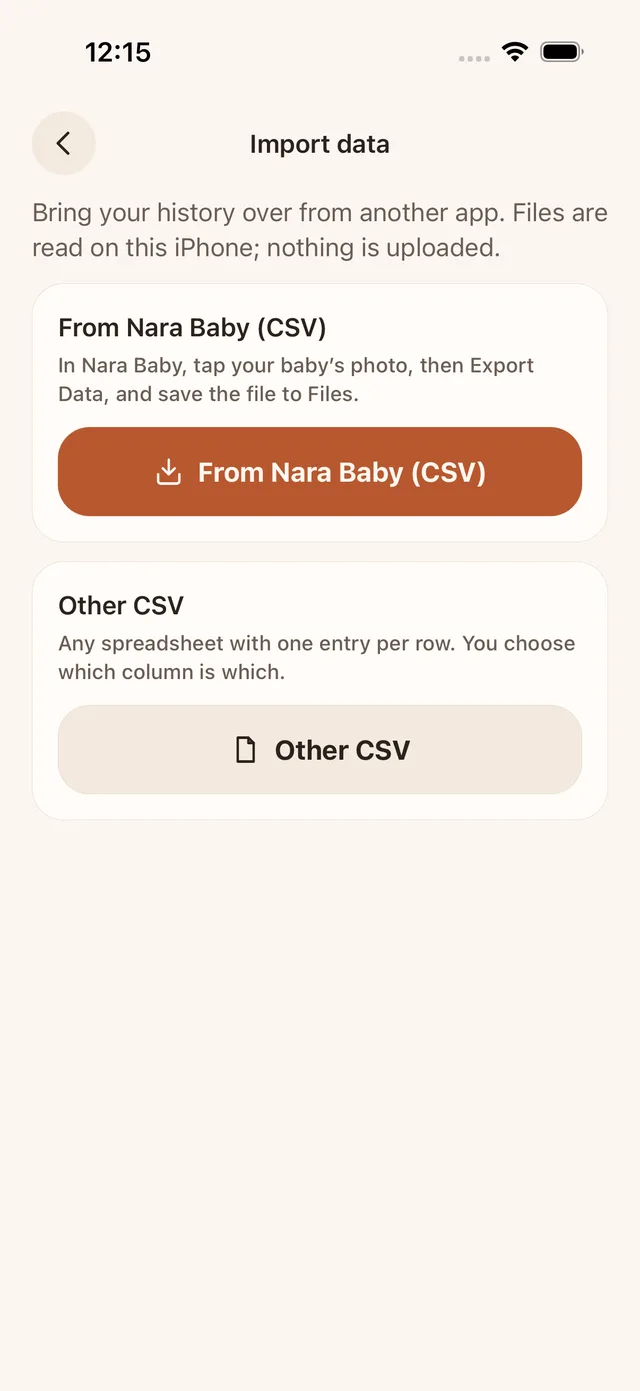
- 2Open Baton, go to More and tap Import data (it is the first row of What's New too).
- 3Tap From Nara Baby (CSV) if the file comes from Nara. Baton's screen says to tap your baby's photo in Nara Baby, then Export Data, and save the file to Files. If you are not sure which app made the file, use the other button: Baton recognises a Nara export from its header either way.
- 4Choose the file or files from the Files picker. You can pick several at once, for example one per baby.
- 5For any other CSV, Baton asks you to match the columns: time (one column, or a date column plus a time column), type (or 'every row is' one kind), amount, duration and note. It makes a guess from the header and shows the first row so you can check it.
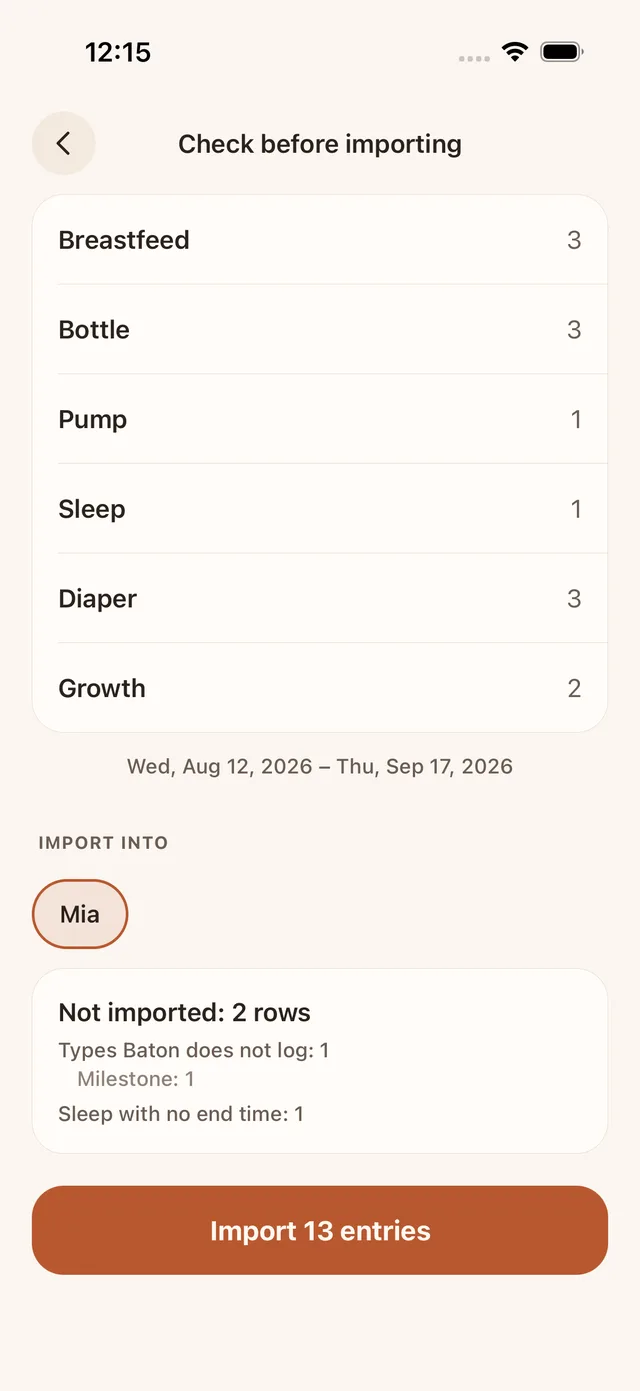
- 6On the Check before importing screen, read the counts per kind, the date range, which baby the entries go to, how many are already in Baton and left out, and the list of rows that will not be imported, with the reason.
- 7Tap Import. When it finishes you get a summary and an Undo this import button that removes every entry from that batch, and a child created for it.
What does the preview check, and what is left out?
The preview is there so that nothing is written until you have seen it. In Baton it shows:
- Counts for each kind of entry found, such as breastfeeds, bottles, pumps, sleep, diapers and growth, and the dates the file covers.
- The baby the entries will go to.
- Duplicates: an entry of the same kind in the same minute as one already in Baton is skipped, so importing the same file twice adds nothing.
- Rows not imported, grouped by reason: types Baton does not log, no readable time, a sleep with no end time, no amount, values it could not read, or an end before the start.
Two things to know: a diaper's texture, blowout or rash flag is not stored by Baton, and a file larger than 20 MB, or an empty or unreadable one, is skipped with a message. Times are read in the time zone the file gives, or on your iPhone's time zone if it gives none.
What should I check after importing?
- 1Open History and scroll to the oldest day you imported. Compare a few entries with the old app, such as a long feed, a night sleep and a bottle amount.
- 2Check the units. An amount in ounces is converted to millilitres, so a 4 oz bottle shows as about 118 ml.
- 3Check the weight and length entries on the growth screen against the old app, or against your pediatrician's records.
- 4If something looks wrong, tap Undo this import while the summary is still on screen, fix the file or the column mapping and import again. If the data is fine, you are done and can delete the old app when you are ready.
Baton records only what you or a file enter, and it does not interpret it. If something about your baby's feeding, sleep or growth worries you, show the log to your pediatrician.
What is free, and what stays private?
- Free: importing from Nara Baby or any CSV, the preview, the undo, and CSV export of your whole history (so you can leave again whenever you want).
- Private: files are read on your iPhone and are not uploaded anywhere. After an import, your baby's log stays on your devices and in your own iCloud, shared with your partner through their own iCloud. Baton has no account, no ads and no analytics.
- Baton Plus is optional and not needed for importing. Prices and what renews are in the Pricing section on the home page.
Frequently asked questions
- Can I move my baby's data from one baby tracker app to another?
- Often yes, if the old app can export a CSV. Export it first, save it to Files, check the dates and import it into the new app. Whether every detail comes across depends on what both apps record.
- Can I import my Nara Baby data into Baton?
- Yes. In Baton go to More › Import data › From Nara Baby (CSV) and pick the file you exported from Nara Baby. Baton shows a preview before it writes anything.
- What if my old app is not Nara Baby?
- Use Other CSV. You match the columns (time, type, amount, duration, note) on one screen, and Baton shows the first row so you can check the guess.
- Will importing the same file twice create duplicates?
- No. Entries of the same kind in the same minute as one already in the log are skipped.
- Can I undo an import?
- Yes. The summary screen has Undo this import, which removes every entry from that batch.
- Is importing into Baton free, and is the file uploaded?
- Importing is free. The file is read on your iPhone and is not uploaded; Baton has no account and the developer cannot see your log.